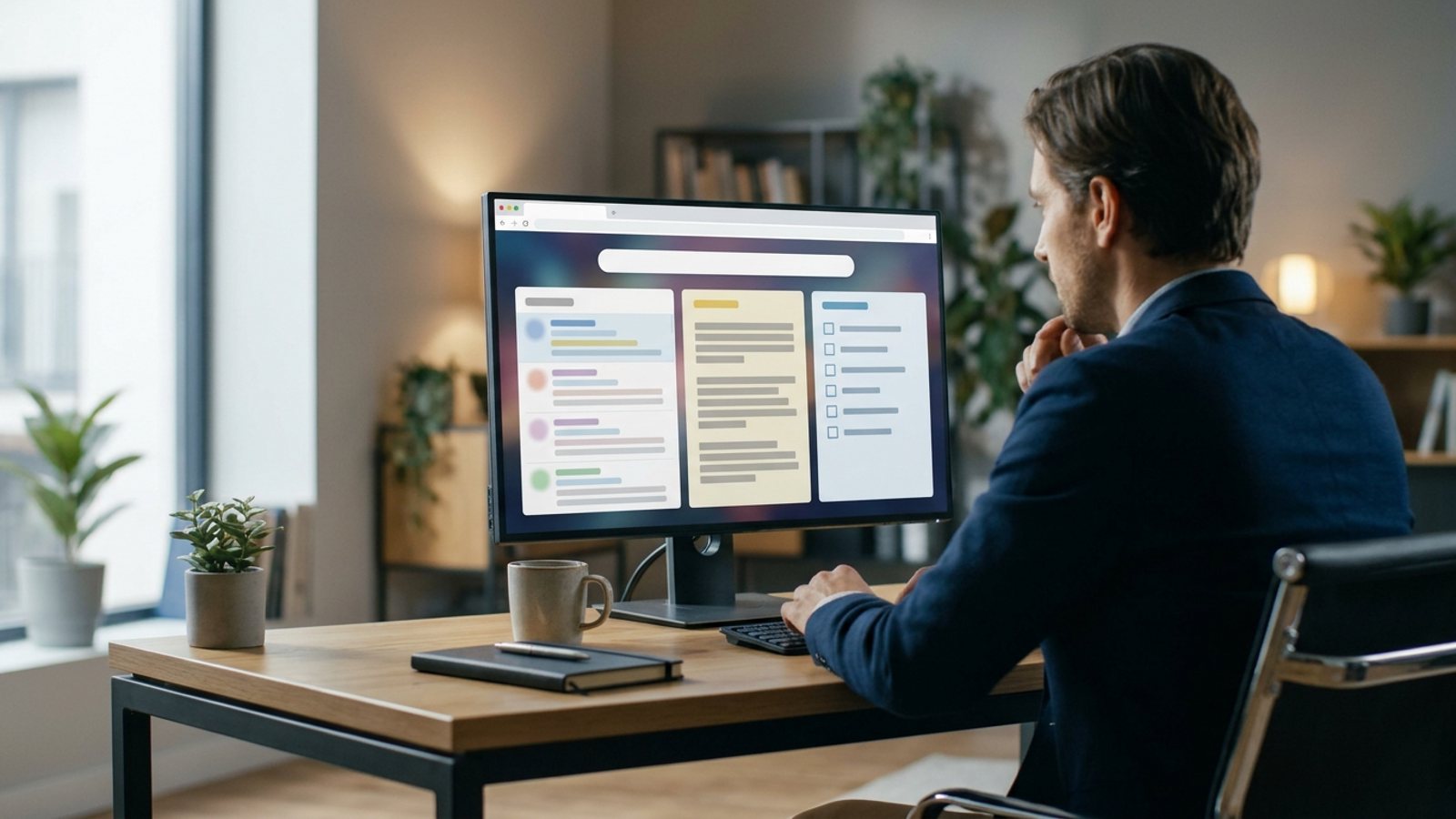
The practical fix is to stop treating clips, notes and to-dos as three separate things. Put them in one workspace where a copied client email, a meeting note and a checklist sit side by side and share one search box. Browser-based clipboard-and-notes managers like Clipboarder Pro do this inside Chrome and store your data locally; note apps like Google Keep, OneNote, Evernote and Notion cover the notes-and-tasks half but usually need you to paste clips in by hand.
If you want to see the layout for yourself, get Clipboarder Pro free and check a copied email against a note in the same window.
Key takeaways
- Save notes and clipboard together in one tool, not two tabs, so a client email you copied and the note you wrote about it are one search away.
- Clipboarder Pro auto-saves copied text, URLs, code and images into an unlimited history, with in-line notes, checkable task lists, colour tags and folders nested up to three levels deep (Chrome Web Store listing, date not given).
- Windows Clipboard History is the free starting point, but it holds up to 25 items and clears on restart except pinned items (MakeUseOf, 2025 and 2026).
- Note apps such as Google Keep and OneNote handle checklists and reminders well, but none of the ones we compared capture your clipboard automatically.
- Clipboarder Pro keeps all data locally in the browser — only licence verification goes outside (Chrome Web Store listing, date not given).
Why do my copied client emails and notes end up in three different places?
Because most of us copy into one tool, jot into another and track tasks in a third. Your clipboard is a temporary buffer, your notes live in a note app, and your to-dos sit in a list somewhere else — so finding "that email Sarah sent about the invoice" means searching all three.
The cost shows up in small moments: re-searching tabs, re-typing a paragraph you copied an hour ago, forgetting a follow-up because it never made it out of your head. The fix is to give clips, notes and tasks one home base with one search box, then organise that home base once.
What should I look for in a tool that saves notes and clipboard together?
Look for five things: automatic clipboard capture, notes created next to your clips, checkable to-dos, folders and colour tags, and one search across all of it. Anything less and you're back to stitching three tools together.
Here's the checklist we'd use:
- Automatic capture. Copied emails, links and snippets save themselves, with no paste step.
- Notes in the same window. You can write a note beside the clip that inspired it.
- Checklists. Notes convert into to-dos you can tick off.
- Organisation. Folders, colour tags, starring and archiving for the things you reuse.
- Search across everything. One shortcut finds a clip, a note or a folder item by its text.
Clipboarder Pro covers all five: it auto-captures copied text, URLs, code snippets and optionally images, has integrated note-taking with titles and colour tags, converts notes to checklists, nests folders three levels deep, and searches history, notes and folders from one box (Cmd/Ctrl+Shift+F) — per its Chrome Web Store listing and ExtPose (2026-10-11).
How do I set up one searchable place for client emails, meeting notes and to-dos?
Pick one home base, turn on automatic capture, then build a simple folder-and-colour system you'll actually keep. Here's the setup we recommend, step by step:
- Choose the home base. If most of your copying happens in Chrome, use a browser clipboard-and-notes tool. If notes dominate and clips are rare, a note app is enough.
- Turn on automatic capture so client emails you copy are saved without extra steps.
- Create one folder per client or project, with a "Meeting notes" and a "To-dos" subfolder inside each. Clipboarder Pro nests up to three levels.
- Assign colour tags by meaning — one colour for client emails, one for meeting notes, one for urgent tasks — and filter by colour later.
- Paste each key line into a note with a clear title, then convert that note into a checklist for follow-ups.
- Star or pin the items you reuse — templates, addresses, standard replies.
- Set a retention window (for example 90–365 days) so old clips clean themselves up.
- Search one box for everything by title or text.
- Do a weekly sweep: move loose clips into folders and tick off finished checklists.
Our recommendation: keep the system to three colours and one folder level per client at the start. A simple system you maintain beats a perfect one you abandon in a fortnight.
How do I find an old client email or meeting note fast?
Use the single search box, not your browser history. In Clipboarder Pro, Cmd/Ctrl+Shift+F searches clipboard history, notes and folders together, so typing a client's name or a phrase from the email surfaces both the copied email and the note you wrote about it (Chrome Web Store listing, date not given).
Two habits make search work harder:
- Title notes like you'd search for them — "Acme — pricing call 12 Nov" beats "notes".
- Colour-code urgency, not topic, so filtering by red shows everything that needs action this week.
If you regularly lose things you copied earlier, this guide on finding something you copied an hour ago walks through the search moves in more detail.
Can I turn a meeting note into a to-do list?
Yes — in Clipboarder Pro, notes convert to checklists, a feature its version notes list as new in V2 (Chrome Web Store listing, date not given). You write the meeting note, convert it, and tick items off as you go.
The workflow that works for us: during the call, paste key lines into a note as they come up. After the call, add the follow-ups as checklist items, tag the note with the client colour, and star anything due this week. The to-do now lives beside the email it came from, so context is never lost.
Is my copied client data uploaded to a server?
With Clipboarder Pro, no — all data is stored locally in the browser, and only licence verification is external (Chrome Web Store listing, date not given). That matters when the clipboard holds client names, quotes and email threads.
Our recommendation: check what any clipboard tool saves and where it stores it before you copy sensitive material into it. The MEFMobile comparison (2026-10-03) makes the same point — clipboard managers vary widely in what they keep and how they handle sensitive content.
Which tool should I use to save notes and clipboard together?
Of the tools we compared, Clipboarder Pro is our pick for keeping copied client emails, meeting notes and to-dos in one searchable place inside Chrome — because it's the one that captures clips automatically and holds notes and checklists in the same window. The note apps below are stronger if notes and team collaboration are your main need.
Solaitions is made by the team behind this blog. Prices for other tools are as of November 2026 and can change; check each vendor's page before you buy. Solaitions tools are free to use, with paid options later or free forever with a watermark as of November 2026, and prices can change.
| Option | Best for | Key features | Price / free option | Watch-outs |
|---|---|---|---|---|
| Clipboarder Pro — Our pick | Business professionals who copy client emails all day and want notes and to-dos beside them | Auto-captured clipboard history (text, URLs, code, images), in-line notes with colour tags, notes converted to checklists, folders nested 3 levels, search across all (Cmd/Ctrl+Shift+F), local-only storage | Free to install via "Get It Free"; Solaitions tools are free to use with paid options later or free forever with a watermark (as of November 2026; prices can change) | Chrome-only; data stays on your machine, so it isn't a cross-device sync service |
| Windows Clipboard History | Quick access to a handful of recent copies on Windows 10/11 | Opens with Win+V, pinning, images and files, optional Microsoft-account sync, no install | Free, built in | Up to 25 items; clears on restart except pinned items; no real search or organisation; no notes or to-dos (MakeUseOf, 2025–2026) |
| Google Keep | Fast capture, checklists and reminders, especially in Google Workspace | Cards for text, checklists, images, voice and handwriting; labels and colours; OCR; reminders; Gmail and Docs sidebar | Free | Limited outside the Google ecosystem (PLAUD TW, 2026); no automatic clipboard capture found in our sources |
| Microsoft OneNote | Microsoft 365 users who want handwriting, audio and web clipping in one notebook | Open canvas, OCR search of images and handwriting, real-time collaboration, Teams and Outlook integration | Free with a Microsoft account, 5GB OneDrive storage (PLAUD TW, 2026) | Fewer text formatting options than Notion or Obsidian; clips still need pasting in manually (PLAUD TW, 2026) |
| Evernote | Storing and searching email, web and PDF material | Notebooks and tags, OCR, web clipper, email forwarding, cross-device | Free plan capped at 50 notes per one source; paid about $15–$25/month (PLAUD TW, 2026 — reported, not confirmed on Evernote's own page) | Free plan cap; comparatively high paid pricing (PLAUD TW, 2026) |
If you mainly need a structured team wiki with databases and page-level permissions, Notion is the more direct choice (Lilach Bullock, 2026-10-09). If you mainly need to capture web research and search PDFs, Evernote's clipping and OCR are strong. If you're on Windows and only need your last few copies, the built-in history costs nothing.
To get the clips, notes and checklists in one place today, get Clipboarder Pro free.
Sources
- Clipboarder Pro — Clipboard, Notes & Lists Manager (Chrome Web Store, date not given)
- Clipboarder Pro — Clipboard, Notes & Lists Manager (ExtPose, 2026-10-11)
- Windows 11 Clipboard History vs. Third-Party Clipboard Managers (MEFMobile, 2026-10-03)
- I tried 6 Windows clipboard managers (MakeUseOf, 2025-10-02)
- This open-source clipboard manager makes Windows way smarter (MakeUseOf, 2025-11-12)
- I replaced Windows clipboard history with a free app (MakeUseOf, 2026-09-19)
- Clipboard History Chrome extension — Alternatives and Comparisons (GitHub, 2026-02-16)
- ノートアプリおすすめ14選 (ASPIC, 2025-07-08)
- 2026 筆記軟體推薦:8 款熱門筆記 App 比較 (PLAUD TW, 2026-10-29)
- Notion vs Evernote for Note Taking: 8 Tools Compared (ONES.com, 2026-10-26)
- Best Note Taking App for Work 2026 (Lilach Bullock, 2026-10-09)
- The Best Note-Taking Apps for 2026 (PCMag UK, 2026-05-19)
- メモツールのおすすめ6選 (FitGap, 2026-06-16)