Can my cursor react with emojis while I'm on a live stream?
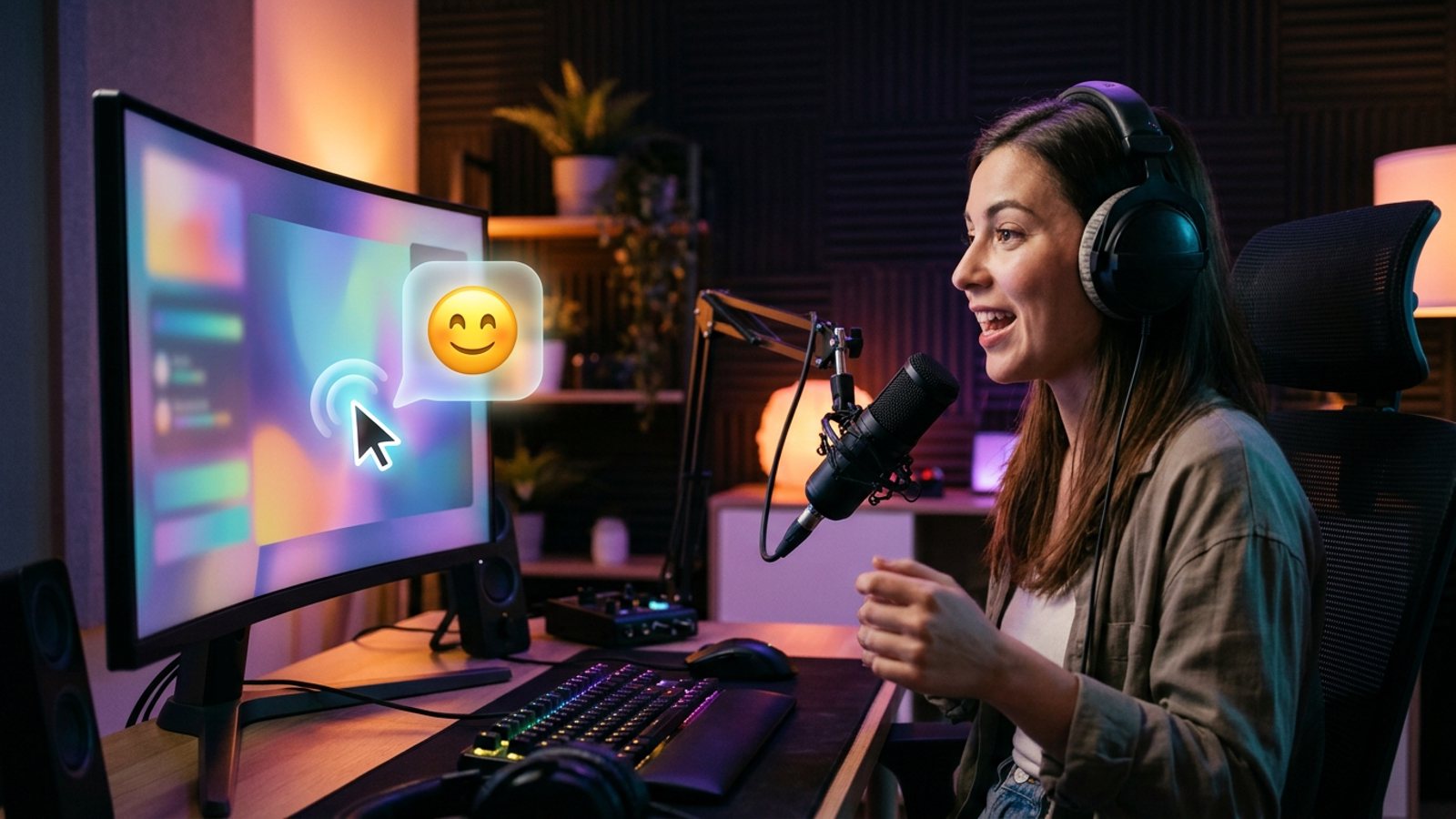
Yes. A Windows app such as EmojiMouse can listen for a word you say, match it to a saved rule, and show that emoji right beside your cursor — offline, while you stream with whatever software you already use. If you want viewers to trigger emoji effects from chat, that's a separate overlay job for tools like StreamElements or Streamlabs.
Download EmojiMouse free and see your cursor react the next time you go live.
Key takeaways
- An emoji cursor for live stream works by voice: you speak a mapped word and the emoji appears beside the pointer, so it shows up on any screen share.
- EmojiMouse is a Windows app that runs alongside your streaming setup. It is not a streaming or overlay tool and does not replace OBS.
- Rules are saved on your machine, so the emoji reactions work offline.
- Viewer-triggered emote floods (chat emotes, subs, commands) are a different feature, usually built in StreamElements or Streamlabs and added to OBS as a Browser source.
- Keep effects moderate — StreamElements warns that very large emote sizes can cause stream delays.
How does an emoji cursor actually work on a live stream?
It listens to your microphone, matches a spoken word to a rule you saved, and draws the emoji next to your pointer — which your viewers see because you're sharing that screen.
EmojiMouse does this as a Windows app that sits on top of your normal workflow. You map a word to an emoji once, and from then on saying that word shows the emoji beside the cursor. Because the rules are saved and the app works offline, it doesn't depend on a cloud service mid-stream.
The key point for a creator: the emoji appears on the screen you share, so your audience sees it in the broadcast without you building a single overlay.
Does an emoji cursor need OBS to work?
No. EmojiMouse runs alongside whatever you stream with and does not require a separate streaming app.
That matters if you stream from a browser, a meeting tool, or a simple screen share. OBS Studio is a popular way to build scenes, and it does have a Browser source that renders web content like overlays and alerts inside a scene (StreamTranslate, updated 2026-10-13). But that's one route to on-screen effects, not a requirement for a cursor emoji.
Our recommendation: start with the simplest path. Install the app, add your rules, and share your screen the way you already do. Add OBS later only if you want layered scenes and chat-driven effects.
How do I set up an emoji cursor for a live stream?
Five steps, and the first two take a few minutes:
- Install EmojiMouse on your Windows PC and keep it running in the background.
- Open its rules and add a mapping: pick a word you'll say on stream, then pick the emoji it should show.
- Start your stream in the software you normally use and share the screen or window where your cursor is visible.
- Say your trigger word on stream. The emoji appears beside the cursor.
- Repeat with a few more words — reactions, a thumbs up, a laughing face — so you have a small vocabulary ready.
Our recommendation: pick trigger words you'd say anyway ("nice", "wow", "done") so the emoji feels like a reaction, not a script.
How do I map my own words to my own emoji?
You create a saved rule per word, and the app shows the matching emoji when it hears that word. Because the rules are stored and the app works offline, your mappings stay put between streams.
Our recommendation:
- Choose words that are distinct from each other so the app doesn't confuse them.
- Avoid words you say constantly by accident — you don't want an emoji firing every sentence.
- Test the mappings in a private call or a quick local recording before you go live.
Will the emoji appear if I only share my screen, not use OBS?
Yes. If the emoji is drawn beside your cursor on a screen you're sharing, viewers see it in the shared feed.
This is the quiet advantage of a voice-triggered cursor emoji: it needs no scene, no source list, no overlay URL. You share the screen, you speak, the emoji shows.
Does it work offline or does it need the cloud?
EmojiMouse works offline with your saved rules. You set the word-to-emoji mappings, and they run locally on your Windows machine.
That's a real difference from web-based overlay services, where the effect lives on a hosted page you load into a broadcast tool.
Can viewers trigger the emojis, or only me?
With a voice-triggered cursor emoji, only you trigger it — it reacts to your spoken words.
Viewer-triggered emotes are a different setup. StreamElements' KappaGen widget shows chat emotes as they're sent and can flood the screen with emotes on a trigger such as a chat event or the !kappagen command (StreamElements docs, 2026-11-02). That's built in its Overlay Editor and then added to OBS as a Browser source.
So the honest split: you want your own cursor to react → EmojiMouse. You want chat to explode with emotes → an overlay widget in StreamElements or Streamlabs.
Can too many emoji effects lag my stream?
They can add load. Each animated overlay is a browser source running inside OBS, and on a weak PC that weighs on performance (Requisitosjogos, 2026-10-02). StreamElements also advises keeping emote size moderate, because very large sizes can cause stream delays (StreamElements, 2026-11-02).
Our recommendation: run one or two effects at a time, watch your CPU during a test stream, and dial back if frames drop.
Can I keep the emoji window visible over my other apps?
You can pin a window on top with PowerToys Always On Top, a free Microsoft utility that keeps the active window above others with a shortcut (default ⊞ Win + Ctrl + T) — Microsoft notes it can't guarantee a pinned window sits above other "topmost" windows, and Citrix, Remote Desktop and VMware windows may stay above it (Microsoft Learn, last updated 2026-07-30).
That's a useful fallback if you want a reaction panel visible while you work in another app.
Which emoji cursor tool should I use?
For a cursor that reacts to your voice with no overlay build, EmojiMouse is our pick of the tools we compared — it's a Windows app with saved rules that works offline and runs alongside your stream setup.
Here's how the realistic options stack up as of November 2026. Prices for the other tools can change, so check their sites before you commit.
| Option | Best for | Key features | Price / free option | Watch-outs |
|---|---|---|---|---|
| EmojiMouse — Our pick | Streamers and presenters who want their own cursor to react on screen | Voice-mapped emoji beside the cursor, saved rules, works offline, runs alongside your existing stream software | Free plan, no credit card (per product facts) | Windows app only per the product facts supplied; it is not a streaming or overlay tool and doesn't replace OBS |
| OBS Studio + emoji overlay | Layered scenes with web-based overlays and alerts | Browser source renders overlays via Chromium Embedded Framework; one URL per overlay | OBS Studio pricing not in our sources; overlay services vary | Each animated overlay is a browser source and weighs on weak PCs (Requisitosjogos, 2026-10-02) |
| StreamElements | Chat-driven emote floods and overlay widgets | KappaGen Chat Emotes and Emotesplosions on chat events or !kappagen; Overlay Editor | Docs describe free-to-use overlay editor features; official pricing not in our sources | Overlay URL is a private account token — never show it on stream; very large emote sizes can cause delays (StreamElements, 2026-11-02) |
| Streamlabs | Moving existing StreamElements alerts and widgets into Streamlabs | One-click importer for alerts, overlays, emote wall, goals, chatbot; browser-source compatible with OBS | Pricing not in our sources | Only the vendor's own migration page was available; no independent performance data in our sources |
| Doing it by hand (or hardware) | No-software reactions | Show a reaction image yourself, or use hardware like the Razer Emote Display, an 8x8 LED screen with 100+ designs (Razer Support, 2026-07-30) | Free by hand; hardware sold separately | Manual switching pulls your attention off the stream; no automatic word-to-emoji mapping |
If you mainly need chat-triggered emote explosions tied to subs and commands, StreamElements is the more direct choice. If you want your own cursor to react as you talk, EmojiMouse is the simpler fit.
Solaitions is made by the team behind this blog.
Is it against platform rules to add emoji effects to a live stream?
Follow the rules of the platform you stream on, and the Chrome Web Store rules for any extension you install. TikTok's Community Guidelines, for example, require users to be 18+ to go LIVE and allow eligible creators to use TikTok LIVE Studio or third-party tools to share their device screen (TikTok Community Guidelines, undated).
Our recommendation: read your platform's live rules before adding on-screen effects, and keep them tasteful.
Can I use it on Mac?
EmojiMouse is described in the product facts as a Windows app. If you stream on a Mac, plan around a Windows machine or check the options above before you build your setup around it.
Ready to try it? Download EmojiMouse free and give your next stream a cursor that reacts.
Sources
- PowerToys Always On Top (Microsoft Learn, last updated 2026-07-30)
- What Is an OBS Browser Source? (StreamTranslate, updated 2026-10-13)
- How to Set Up an OBS Browser Source for Stream Overlays (StreamTranslate, 2026-03-25)
- Add an Overlay to Your Broadcast Software (StreamElements docs via GitHub, 2026-11-02)
- Add overlays and alerts (StreamElements, 2026-11-02)
- KappaGen (Emote Explosions) (StreamElements, 2026-11-02)
- StreamElements to Streamlabs importer (Streamlabs, undated)
- Como Fazer Overlay e Alertas Grátis para a Twitch (Requisitosjogos, 2026-10-02)
- Razer Emote Display support FAQ (Razer Support, 2026-07-30)
- TikTok Community Guidelines (via OpenTermsArchive, undated)
Frequently asked questions
Want this running for your business?
Tell us what you want to automate and we'll show you the fastest way to get there.
Contact usRelated posts

How do I make each Facebook group post slightly different without writing 40 versions by hand?
Write one base post, let AI variations rewrite it into a batch of differently worded versions, review them, then share. MGSA builds free AI variations into its share flow with no API key needed.

How do I send a venue change and final schedule to vendor and client groups in one click from WhatsApp Web?
Save your vendor and client audiences as reusable presets in a WhatsApp Web extension, then fire your venue-change announcement to both lists in one click with staggered delays.

How do I stop every Facebook group getting the exact same post text when I bulk share a listing?
Stop pasting one block of text into every group. Vary the wording per group — by hand, with spintax, or with AI text variations built into a bulk-share tool.