How do I send a venue change and final schedule to vendor and client groups in one click from WhatsApp Web?
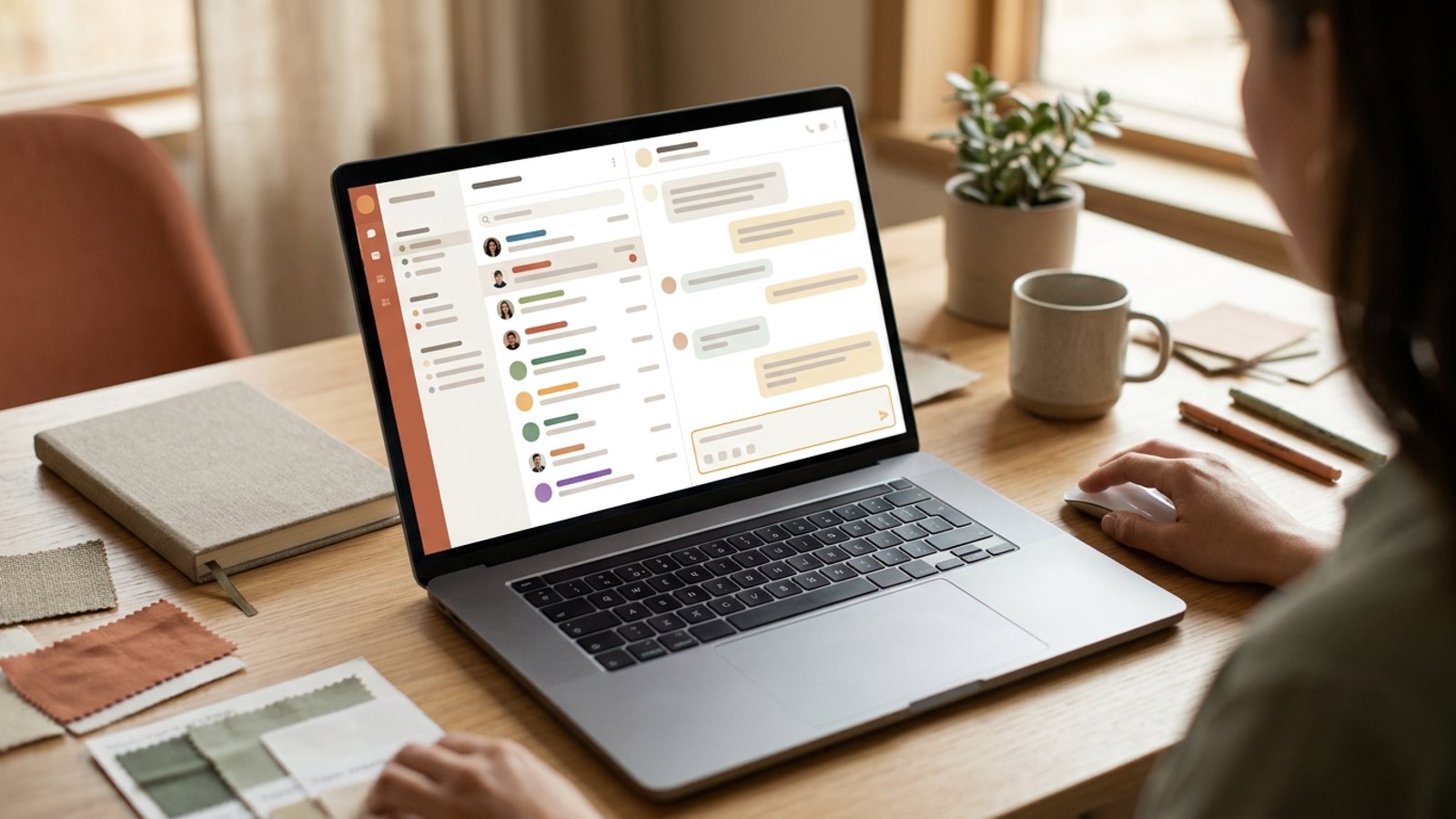
You can't do it with native WhatsApp alone — there's no built-in "send to two saved lists" button, forwarding stops at five chats, and broadcast lists only reach individual contacts who saved your number. What works is a Chrome extension for WhatsApp Web that saves your vendor and client groups as reusable presets, then sends your venue-change announcement to both lists in one click, with a delay between messages.
Solaitions' FivePlus for WhatsApp is built for exactly this: save each audience once, then fire the message to both lists from WhatsApp Web. Add FivePlus to Chrome and set up your two presets before the next venue change lands on your desk.
Key takeaways
- Native WhatsApp forwarding is capped at 5 chats per send, and broadcast lists only message individual contacts — neither reaches two saved lists of groups in one click.
- The workable setup is WhatsApp Web in Chrome plus an extension that stores people and groups together in named presets.
- Build "Vendors" and "Clients" once, save the venue-change text as a template, and switch on staggered delays.
- Keep the WhatsApp Web tab open and logged in until every send finishes.
- WhatsApp says its products are not intended for bulk or automated messaging — announce only to groups whose members expect to hear from you, with admin permission.
How do I send whatsapp message to multiple saved lists at once?
You save each audience as a preset, draft the message once, then send to both presets in a single action from WhatsApp Web. That's the whole trick — the sending is quick only because the list-building happened earlier.
Here's why the native route doesn't get you there:
- Forwarding goes to at most 5 chats at a time, per WhatsApp's Help Center. Messages that have already been forwarded are tighter still: 5 chats including at most one group, and heavily forwarded messages drop to one chat.
- Broadcast lists send one message to many contacts as private 1:1 chats, so they never land inside your existing vendor and client groups. Vendor blogs Wati (September 2026) and Sinch (August 2025) both put the cap at 256 contacts per list, and delivery requires the recipient to have saved your number.
- Manual copy-paste works, but you repeat the same paste for every group — and a venue change usually can't wait.
Our recommendation: set up the presets on a quiet afternoon, not the morning the venue falls through.
How do I build a "Vendors" and a "Clients" preset in WhatsApp Web?
Open WhatsApp Web in Chrome, log in by scanning the QR code, then create one saved list per audience inside the extension. Put people and groups in the same list — a venue change usually needs the caterer's group, the AV contact, the photographer, and the client's family group, all at once.
- Open WhatsApp Web in Chrome and scan the QR code so the tab is logged in.
- In the extension, create a preset called Vendors. Add vendor group chats and individual vendor contacts to the same list. ZapSender's README (September 2026) and TurboText WA's Chrome Web Store listing both describe mixing groups, contacts and numbers in one campaign.
- Create a second preset called Clients the same way.
- Save your venue-change message as a reusable template. WCAB's Chrome Web Store listing, for example, offers 3 saved templates on its free tier.
- Switch on the delay between messages — WCAB lists "random send intervals", and WA Scheduler (updated November 2026) supports scheduled sends.
- Fire both presets. Keep the tab open until the last send finishes, then check the send log and retry any failures.
FivePlus works the same shape: save your groups and contacts as presets once, then pick a preset and send an announcement or media file to all of them in one click. You can also combine people and groups in a single preset, or send to multiple saved lists at once. Add FivePlus to Chrome to build your Vendor and Client lists.
If you want the deeper walkthrough on preset hygiene, our guide to saving WhatsApp group lists as presets covers naming and upkeep.
What should the venue-change message itself say?
Lead with the change, then the new details, then what you need from them — in that order, in the first two lines. Vendors and clients are scanning on a phone between other things.
A structure that works:
- Line 1: the change. "New venue: [name and address]. Same date and time."
- Line 2: the final schedule, as short bullets — load-in, doors, ceremony, dinner, carriages.
- Line 3: the one action you need. "Reply OK so I can confirm numbers."
- Line 4: who to call with questions, and by when.
Our recommendation: send the identical core message to both lists, and add a single line at the top of the vendor version ("Load-in is now 2pm, not 11am") rather than rewriting the whole thing. Speed matters more than polish on a venue change.
Can I really send to two lists in one click?
In practice, yes — but expect two clicks, not one, in most tools. Extension listings show multi-group sending with saved selections, but whether a specific tool fires two saved presets in one single action varies by product, and the material we reviewed doesn't confirm a one-action dual-preset send anywhere.
What the tools do confirm is the shape of the workflow: pick your saved selection, hit send, let the extension work through the list with a delay between messages. On FivePlus, you pick a preset and send in one click, and you can send to multiple saved lists at once.
The honest part: delays reduce risk, they don't remove it. MSG.AI's Chrome Web Store listing states plainly that "sending delays do not guarantee protection from account restrictions."
Which tool should I use to send a WhatsApp announcement to many groups?
For an event planner firing the same announcement at vendor and client groups from WhatsApp Web, FivePlus is our pick of the tools we compared — it saves people and groups into reusable presets and sends to multiple saved lists from one screen.
Solaitions is made by the team behind this blog.
| Option | Best for | Key features | Price / free option | Watch-outs |
|---|---|---|---|---|
| FivePlus for WhatsApp — Our pick | Event planners and business owners broadcasting to many saved groups and contacts | Save groups and contacts as presets; mix people and groups in one preset; send to multiple saved lists at once; randomized, staggered delays | Free 24-hour trial, then paid plan | Works through WhatsApp Web in Chrome; not affiliated with Meta/WhatsApp; does not eliminate ban risk |
| WhatsApp native broadcast lists | One-way updates to known contacts who saved your number | Free; 256 contacts per list | Free | Messages arrive as private 1:1 chats, not inside your groups; recipients must have saved your number |
| WhatsApp native forwarding | A handful of chats, one-off sends | Free | Free | 5 chats per forward; already-forwarded messages max one group among the five |
| Message Pilot | Trying multi-group sending on a free tier | Select multiple groups from the chat list; CSV/Excel bulk sends; natural delay | Free tier: 3 groups per group-send, 10 contacts per bulk send, 3 sends per day | Requires WhatsApp Web logged in; states it is not officially related to Meta/WhatsApp |
| WA Scheduler | Timing an announcement for a specific moment | Absolute or relative scheduling ("in 30 minutes"); bulk sends; automated replies | Not stated in the listing we reviewed | Requires the extension installed and WhatsApp Web open |
| WhatsApp Business Platform (via a provider) | Large client bases needing a compliant route | Meta-approved templates; opt-in consent; per-message billing | Billed per message; provider prices vary (e.g. WOZTELL $49/mo, WADesk $25/mo per SourceForge, undated — verify before quoting) | Messages individuals, not groups; unique-recipient limits start at 250 per rolling 24 hours for new portfolios (Zernio, June 2026) |
If you mainly need scheduled, time-triggered sends rather than saved audience lists, WA Scheduler is the more direct choice. If your client base is large and you need a formally compliant channel, the Business Platform route with approved templates is the right one — bots via the official API are permitted with opt-in consent and templates, per a January 2026 legal write-up on the deploy-openclaw repository.
For the broader comparison of sending the same message to many groups, see how to send the same WhatsApp message to several saved groups. And if you're worried about volume, our piece on sending to 30 groups without getting flagged covers the pacing question.
What are the rules and risks I need to know?
WhatsApp states that its products, including the WhatsApp Business app and Business Platform, "are not intended for bulk or automated messaging", which it says has always been a violation of its Terms of Service. It also says enforcement targets senders of bulk and automated messaging — receiving a large number of messages at once will not get an account banned.
Practical rules for an event planner:
- Ask group admins first. Using customer groups for promotions without participants' opt-in can breach WhatsApp's Business Policy, per Wati's comparison (updated February 2026).
- Only announce to groups whose members expect to hear from you. A venue change to your own confirmed guests and booked vendors is an update, not marketing — keep it that way.
- Don't use unofficial automation at scale. A February 2026 Estadão/TecMundo report described 131 nearly identical rebranded Chrome extensions built to bypass WhatsApp anti-spam protections, potentially violating terms.
- Follow Chrome Web Store rules too. Install extensions from the official store, and check what permissions each one asks for.
Our recommendation: treat the extension as a speed tool for announcements you'd legitimately send anyway, not as a way to reach strangers.
Sources
- Unauthorized use of automated or bulk messaging on WhatsApp (WhatsApp Help Center, undated)
- How to forward messages (WhatsApp Help Center, undated)
- Forwarding limit (WhatsApp Help Center, undated)
- How to use WhatsApp responsibly (WhatsApp Help Center, undated)
- WhatsApp – one message to many contacts (Vodafone, 20 Mar 2025)
- WhatsApp broadcast vs group (Wati blog, 12 Oct 2025 / updated 18 Feb 2026)
- Broadcast WhatsApp untuk bisnis (Wati blog, 28 Sep 2026)
- WhatsApp broadcast business guide (Sinch blog, 12 Aug 2025)
- WhatsApp broadcast limits in 2026 (ChatbotX blog, 29 Jul 2026)
- WhatsApp broadcast messages explained (Zernio blog, 25 Jun 2026)
- Message Pilot Free (Chrome Web Store, updated 19 Jun 2026)
- TurboText WA (Chrome Web Store, undated)
- WA Scheduler (Chrome Web Store, updated 9 Nov 2026)
- MSG.AI (Chrome Web Store, updated 28 Oct 2026)
- WhatsApp Bulk Sender & Privacy Guard (Chrome Web Store, undated)
- ZapSender Pro README (GitHub, 14 Sep 2026)
- WhatsApp ToS & legal considerations (deploy-openclaw, 27 Jan 2026)
- 130+ Chrome extensions and WhatsApp Web (Estadão/TecMundo, 23 Feb 2026)
- WASender AI alternatives (SourceForge, undated)
Frequently asked questions
Want this running for your business?
Tell us what you want to automate and we'll show you the fastest way to get there.
Contact usRelated posts

How do I make each Facebook group post slightly different without writing 40 versions by hand?
Write one base post, let AI variations rewrite it into a batch of differently worded versions, review them, then share. MGSA builds free AI variations into its share flow with no API key needed.

How do I stop every Facebook group getting the exact same post text when I bulk share a listing?
Stop pasting one block of text into every group. Vary the wording per group — by hand, with spintax, or with AI text variations built into a bulk-share tool.

What is the best way to send a new listing to 30 local buyer groups on WhatsApp before the weekend open house?
Save your 30 buyer groups as a preset and send your listing in one click instead of re-forwarding in batches of five. Here's how, plus the WhatsApp rules to follow.