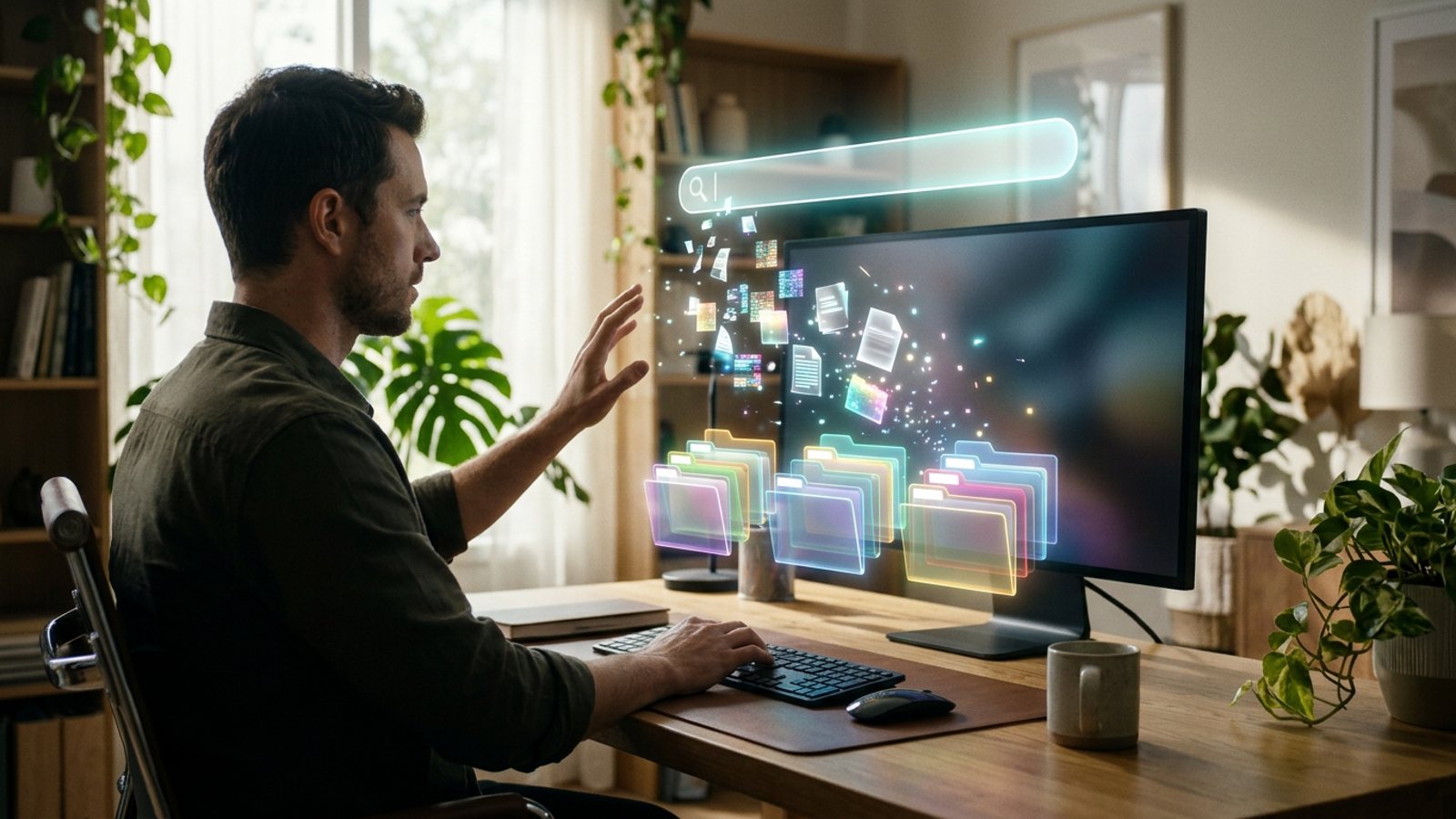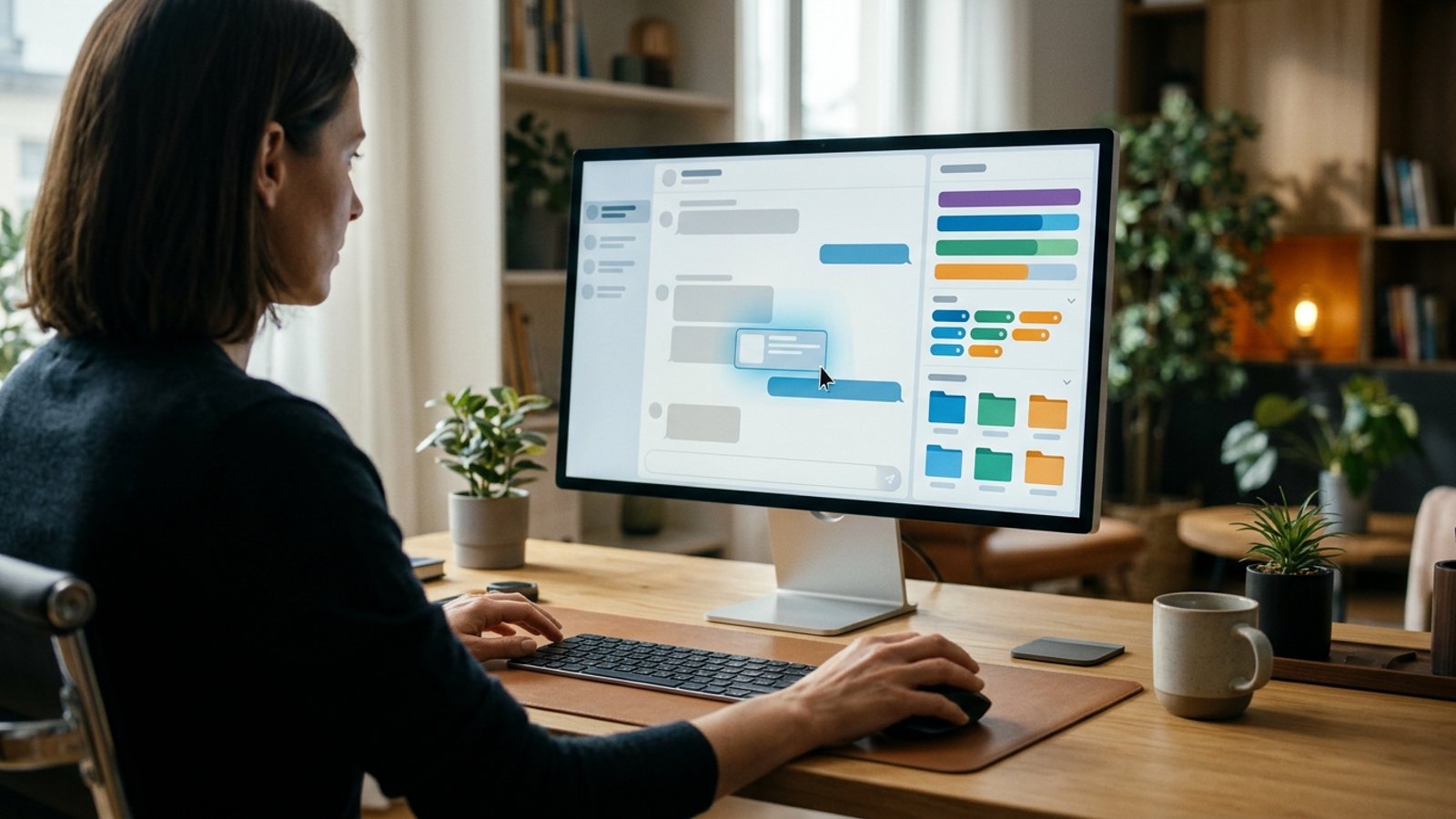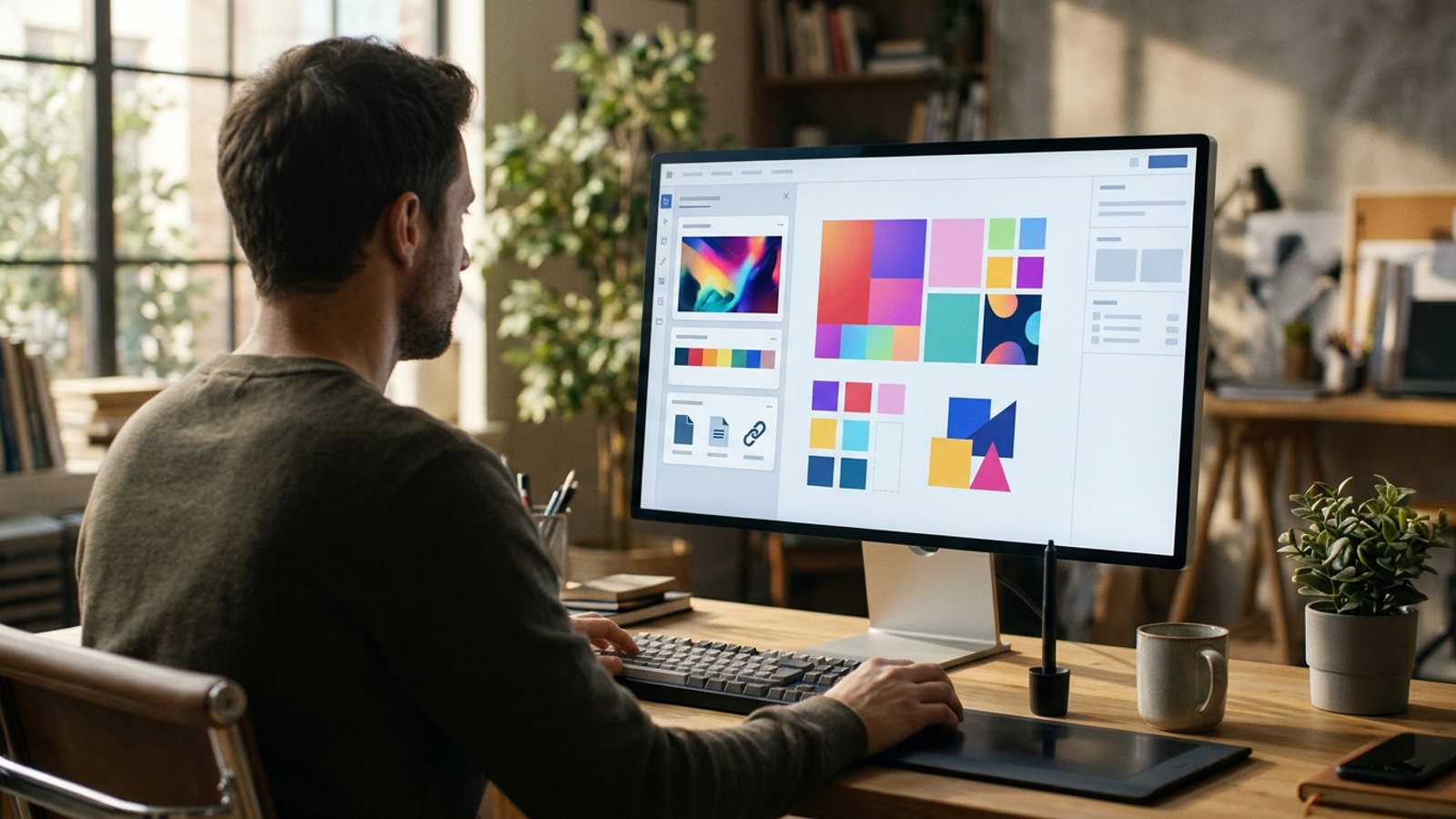
Yes. Chrome extensions like Clipboarder Pro keep a clipboard history that includes images and screenshots, not just text. Clipboarder Pro auto-saves copied text, URLs and images into one searchable history stored locally in your browser, and image capture is switched on in its settings. It does not edit images or store your history in the cloud.
Get Clipboarder Pro free and stop hunting for the screenshot you copied ten minutes ago.
Key takeaways
- Save copied images clipboard history tools keep screenshots and graphics next to your text clips, in one list.
- Clipboarder Pro captures text, URLs and images, and you enable "Image Support" once in settings.
- Everything stays on your device — Clipboarder Pro's listing says data is stored locally in the browser.
- Search with Cmd/Ctrl+Shift+F, open history with Alt+V, and organise with folders, colour tags and favourites.
- Chrome re-encodes copied PNGs for safety, so a pasted image looks identical but may not be byte-identical.
How does a Chrome extension save copied images at all?
It reads the clipboard and stores what it finds. Extensions with the clipboardRead permission can read clipboard contents, according to Google's Chrome Enterprise help, and Chrome's Async Clipboard API supports image/png alongside text and HTML, per Chrome for Developers.
That means the mechanics are straightforward: you copy or screenshot as normal, the extension records the item, and you pull it back later. Our recommendation: check a tool's privacy statement before installing, because clipboard access is broad by design.
Does Clipboarder Pro save images as well as text?
Yes — it captures "every piece of text and image you copy" into one history, and its Chrome Web Store listing shows an Image Support feature you switch on to capture screenshots, graphics and photos.
Here is the practical setup, using Clipboarder Pro's own shortcuts:
- Install the extension from the Chrome Web Store and pin it to the toolbar.
- Open the extension settings and turn on Image Support.
- Copy text, copy a link, or take a screenshot the way you normally do.
- Press Alt+V to open your history.
- Search with Cmd/Ctrl+Shift+F, or filter and click the item to reuse it.
- Optionally sort items into smart folders, colour-tag them, or star favourites.
- Set a retention period of 1–365 days so old clutter clears itself.
Clipboarder Pro also holds in-line notes and checkable task lists, and you can bulk-select several clips and copy them together in one shot. Handy when you are assembling a mood board's worth of hex codes and asset links for one page.
Where do copied images get stored — my device or the cloud?
On your device, for Clipboarder Pro. Its listing states all data is stored locally in the browser, with nothing uploaded to external servers apart from licence verification.
That is good for client work and research notes you would rather not sync anywhere. The trade-off is honest: no cloud account means no cross-device sync, and the history lives with that browser profile. If you want a clipboard history extension that behaves like a private local notebook, this is the shape to look for.
Can I search my copied images later instead of scrolling?
Yes, in Clipboarder Pro you search the whole history rather than scrolling, and folders, colour tags, favourites and archive keep it navigable as it grows.
Two tips from our own workflow:
- Our recommendation: colour-tag by project the moment you copy something you will need again — tagging later is the step people skip.
- Our recommendation: use short, consistent note text next to screenshots ("homepage hero v2") so search actually finds them.
If your problem is finding any clip, text or image, this is the same habit set we cover in how to find something you copied an hour ago.
Do copied images come back exactly as they went in?
Visually yes, byte-for-byte not certain. Chrome for Developers notes the browser re-encodes PNGs for safety (compression-bomb protection), so pasted images look identical but are not necessarily identical files.
For designers grabbing references and researchers collecting figures, that is fine. For anything where an exact original file matters, save the source file itself, not the clipboard copy.
Which tool should I use? Options compared
Clipboarder Pro is our pick of the tools we compared for one searchable history of text, links and images together. Solaitions is made by the team behind this blog.
| Option | Best for | Key features | Price / free option | Watch-outs |
|---|---|---|---|---|
| Clipboarder Pro — Our pick | One searchable, local history of text, URLs and images | Image Support toggle, Alt+V history, Cmd/Ctrl+Shift+F search, smart folders, colour tags, notes, task lists, bulk copy, 1–365 day retention | Free to try; see the current price on the Chrome Web Store listing (prices can change) | Image capture is opt-in; history is device-local; it does not edit images |
| Clipboard for Google Chrome™ ("Image Clipboard") | Capturing and lightly editing one image, then saving it to disk | Tab capture, built-in editor (crop, arrows, blur/redact), PNG/JPEG/WebP export, recent-image thumbnails, right-click any web image | Listed as free (Chrome Web Store, updated 23 July 2026; 951 users, 4.4/5 from 36 ratings) | Image-focused, not a text history; saves to Downloads rather than a searchable library; not made by Google |
| Total Recall Clipboard | Local-first capture of copied and right-clicked images | Saves copied images and right-clicked images, search, archive, export, backup | Free tier details not stated in our sources | Fewer organisational features documented than Clipboarder Pro |
| Copyhold – Clipboard History | A light free tier for occasional copying | Searchable history for text and images | Free tier saves the last 20 copied texts (Socket.dev, 30 September 2026) | The 20-item cap arrives fast; premium likely needed for more |
| Windows Clipboard History (Win+V) | System-wide capture without installing anything | Built-in, supports images and files, optional cloud sync with a Microsoft account | Built into Windows 10/11 | Windows only; not tied to your browser workflow, folders or tags inside Chrome |
| Ditto | Windows users who want system-wide capture with LAN sync | Images and rich text, captures from all applications, network sync between PCs | Free, per a third-party comparison (16 February 2026) | Windows-only desktop app |
If you mainly need to annotate and export a single screenshot to a file, Image Clipboard is the more direct choice. If you want every copy — text, link and image — in one searchable place, try Clipboarder Pro and set it up in about two minutes.
What else is worth knowing before you install one?
A few practical points that save surprises:
- Extensions run in Chrome on any operating system, so a Chrome extension travels with your browser rather than your OS — unlike Win+V.
- NeoClip, an Edge add-on (18 July 2026), offers OCR on copied images and private cloud sync, if reading text out of screenshots is your priority.
- ClipFlow stores text, links and images on-device in IndexedDB, per its Chrome Web Store listing.
- Follow Chrome Web Store rules and each tool's terms; at the time of writing, menus and settings may differ between versions.
If you are weighing whether a clipboard tool earns its place at all, our breakdown of whether a clipboard history extension is worth it for consultants walks through the time math.
Solaitions builds AI Chrome extensions and software that delete busywork, from clipboard history to form filling and video clipping — so you finish the admin earlier and get your evening back. Get Clipboarder Pro free and never lose a copied screenshot again.
Sources
- Clipboarder Pro – Clipboard, Notes & Lists Manager (Chrome Web Store)
- Clipboarder Pro stats (Chrome-Stats, snapshot 2025-12-16)
- Clipboard for Google Chrome™ (Chrome Web Store, updated 2026-07-23)
- Clipboard History chrome extension alternatives & comparisons (GitHub: theluckystrike, 2026-02-16)
- Total Recall Clipboard (Socket.dev, 2026-09-08)
- Copyhold – Clipboard History (Socket.dev, 2026-09-30)
- ClipFlow (Chrome Web Store)
- NeoClip (Microsoft Edge Add-ons, 2026-07-18)
- Unsanitized HTML in the Async Clipboard API (Chrome for Developers)
- Custom web formats for Async Clipboard API (Chrome for Developers)
- chrome.clipboard Platform Apps API (Chrome for Developers, updated 2026-10-29)
- Chrome apps and extension permissions – clipboardRead (Google Help)